
Security & Anti-Scam
How to Set Up an OKX Anti-Phishing Code and Check Suspicious Emails
An OKX anti-phishing code gives you a personal marker to check in official emails. Follow the current app and web setup paths, choose a safe code, test it, and use a four-step routine when an email is missing the code or still looks suspicious.
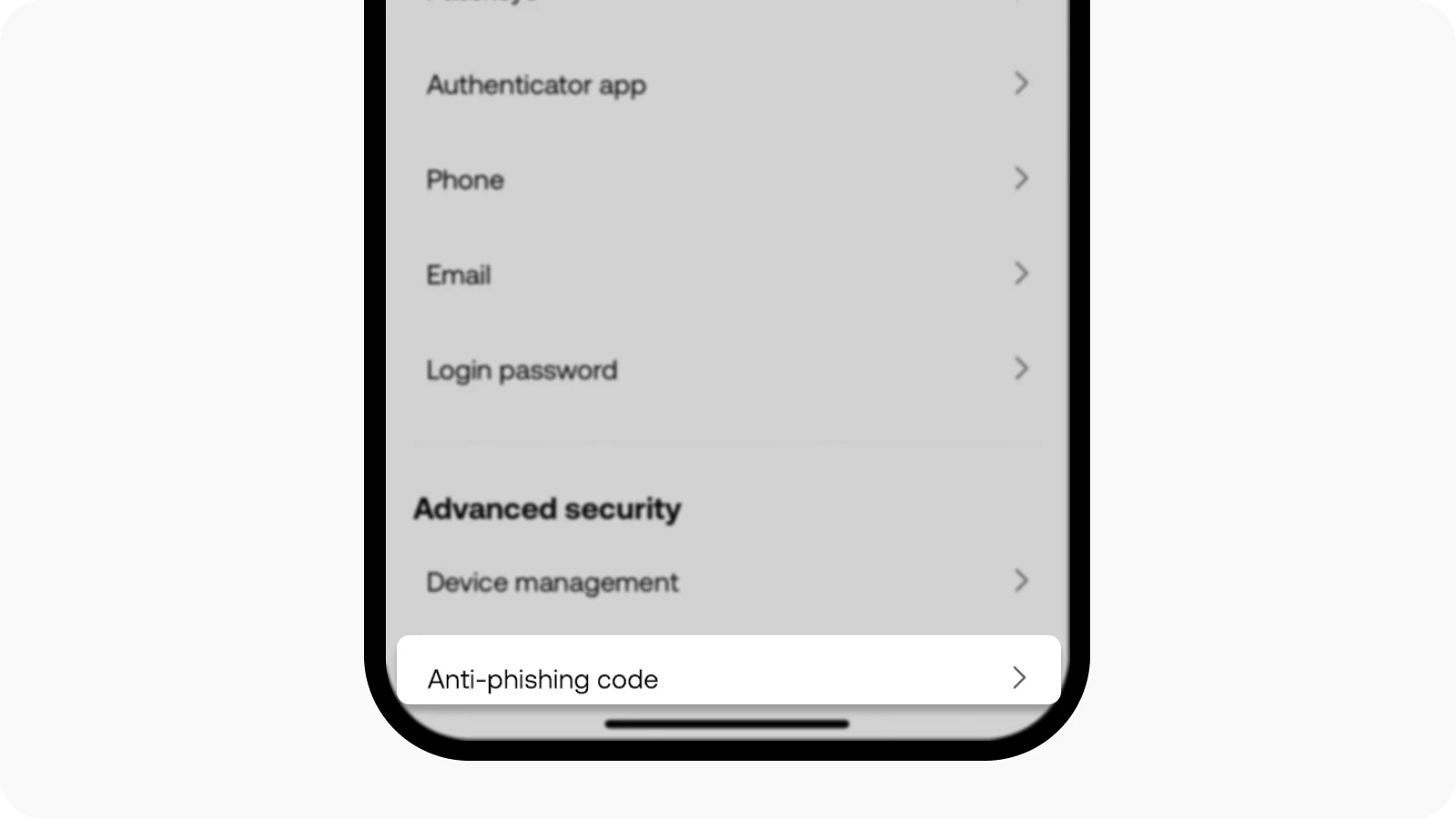
To set up an OKX anti-phishing code, open the signed-in Security area, choose Anti-phishing code, create a recognizable code, complete the verification shown on screen, and confirm the setting. Future OKX emails should display that marker, giving you one more check before you trust a message.
Checked August 24, 2026. OKX menu labels and available verification methods can differ by region, account type, and app version. Follow the signed-in screen for your account and never use a login link from an unsolicited email.
Real OKX interface screenshot from the official Help Center setup guide. It shows the Anti-phishing code entry under Advanced security; no account details are visible.
What the anti-phishing code does
An anti-phishing code is a short marker that you choose inside your OKX account. According to OKX's phishing-protection guidance, emails sent after setup should contain the code. If an email that claims to be from OKX omits it or displays a different value, treat the message as suspicious.
The code improves one specific decision: whether an email deserves further trust. It does not replace an authenticator app, passkey, withdrawal controls, or a careful domain check. It also is not a cryptographic guarantee. Someone who has already seen the code—for example, through a compromised mailbox—could copy it. A matching code is therefore a positive signal, not permission to click every link.
If you are securing a new account, place this step inside a broader exchange account security checklist that also covers strong passwords, two-factor authentication, device review, and small test transactions.
Before you start
Use a device and network you trust, then open the official OKX app or type okx.com directly into the browser. Do not start from a message that says your account will be frozen, upgraded, refunded, or closed unless you act immediately; urgency is a common phishing tactic.
You may be asked for an SMS, email, authenticator, passkey, or other account check. Complete only the challenge presented inside the official app or website. Never send a one-time code, password, private key, or seed phrase to a caller or chat contact.
Set up the code in the OKX app
Current OKX help pages describe this route, although labels can vary slightly:
- Open the official OKX app and sign in.
- Open Menu or the profile area.
- Select Security, sometimes shown under Profile and settings.
- Under Advanced security, choose Anti-phishing code.
- Select the setup option and enter a code you can recognize quickly.
- Complete the verification requested on screen, then confirm.
- Return to the Security page and make sure the setting is active.
The screenshot above matches the current official Help Center flow. If the option is absent, update the app and check the Security area again. Feature availability can vary by region; do not install an unofficial app or use a third-party tool to force access.
Set up the code on the OKX website
OKX's account security guide places the option in the Security page's Advanced security section:
- Type
okx.cominto the address bar and sign in. - Open User Center and select Security.
- Find Advanced security, then select Anti-phishing Code.
- Create your code and complete the SMS, authenticator, or other verification shown for your account.
- Confirm the change and review the same Security page to verify the setting.
Do not copy menu paths from a search ad or a direct message. If the page address or sender is in doubt, use the site's guide to verify an OKX website, email, phone number, or Telegram account before entering credentials.
Choose a useful code
A good anti-phishing code is easy for you to recognize but poor as a credential:
- Use a short, memorable phrase that is unrelated to your name, email address, birthday, or username.
- Do not use an OKX password, fund password, authenticator secret, recovery phrase, private key, or a password reused elsewhere.
- Avoid language that could be mistaken for part of an email template, such as “verified” or “support.”
- Treat the code as private, even though it is not a password: do not post screenshots of emails that reveal it.
The code will appear in messages, so its purpose is recognition—not access control. Your account password and second factor must remain separate.
Test the setting safely
After saving the code, do not trigger a withdrawal or make an unnecessary account change just to generate mail. Wait for the next routine OKX notification that your account would normally receive, then check whether the marker appears and matches exactly.
If it is missing, first confirm that the message was sent after setup and that the Security page still shows your code as active. Then inspect the sender and domain without clicking links. If you still cannot reconcile the message, open OKX directly and contact support through the in-app or on-site Support Center.
Use this four-step check for every suspicious email
1. Compare the anti-phishing code
Missing or wrong code: stop. Do not click, reply, open an attachment, scan a QR code, or call a number contained in the message. Mark the email as phishing and verify any claimed account problem inside OKX itself.
Matching code: continue checking. It makes the email more credible, but does not prove that every link or instruction is safe.
2. Inspect the real sender and destination
Expand the sender details rather than trusting the display name. Hover over links on desktop without clicking and inspect the full destination. Lookalike spellings, unrelated domains, shortened links, and unexpected attachments are warning signs. OKX's current email-safety guidance also recommends checking official channels and, for advanced cases, reviewing SPF, DKIM, and DMARC results in the email file.
3. Ignore urgency and move the action to the app
Do not resolve a login alert, password reset, withdrawal, refund, or “risk-control” notice through the email. Open the official app or type the site address yourself, then look for the same alert in the account or notification center. A real account issue should be handled on the official surface.
4. Escalate if anything changed without you
If the Security page shows an unfamiliar code, an unknown device, or an action you did not initiate, treat it as possible account compromise. Change the password from a trusted device, remove unknown sessions, review authentication methods and withdrawal settings, preserve the suspicious message as evidence, and follow the first-hour OKX account-compromise checklist. Contact OKX through the Support Center opened from the official app or website.
What to do if the code is exposed or forgotten
Open the Security page directly and use the available manage or change option. Choose a new code and repeat the safe test above. If you merely forgot the text but see no other suspicious activity, do not guess based on an email; check the setting inside the account.
If the code appeared in a screenshot you posted publicly, change it. If it was revealed after you logged in through a suspicious page or shared your screen with an untrusted person, assume more than the code may be exposed: change credentials, revoke unknown sessions, and review account activity.
FAQ
Does a matching code prove an email is genuine?
No. It is a useful additional signal, but a compromised mailbox or previously exposed code can weaken it. Confirm the sender and destination, and perform sensitive actions only in the official app or on a site you opened directly.
Are old emails supposed to contain the code?
Only use the code to judge messages sent after you enabled or changed it. An older message cannot display a setting that did not yet exist for your account.
Does the code protect SMS or chat messages?
It is designed for OKX email communications. For SMS, Telegram, WhatsApp, social media, or phone calls, verify the channel separately and never share login or verification secrets.
Should the anti-phishing code be my password?
Never. The marker appears in emails and should not be reused as any password, authenticator secret, recovery phrase, or other credential.
Sources and scope
This guide was checked against OKX's official phishing-protection article, account-security guide, P2P phishing setup guide, and phishing-email guidance on August 24, 2026. Product availability and labels vary by jurisdiction and version, so the signed-in Security page remains authoritative for your account. This article is educational and is not affiliated with OKX; it does not provide investment, legal, or financial advice.