Fees & Savings
Where to Find Your OKX Fee History - and How to Export Statements
Want to know what trading actually costs you? Three entry points: per-order fill details, the bill/funds flow, and bulk CSV export from the report center - plus what to do with the file once you have it.
Checked July 13, 2026. Menu names and paths may shift slightly between versions; follow the live app/web menus.
Fees are the most easily ignored cost in trading - a few decimal places per fill, a meaningful bite of your returns in aggregate. Managing the cost starts with finding the numbers. OKX exposes them at three levels of granularity.
Entry 1: fill details on a single order
Order center → Order history, open any order, and the fill details list the average fill price, filled quantity, and the fee for that order (spot fees are typically charged in the asset you receive). Good for spot-checking a single trade.
Entry 2: the bill / funds flow
Assets → Bills (funds flow), filtered by fee-type entries, shows every deduction over a chosen period. Good for a monthly review of where fees actually accumulate.
Entry 3: bulk export from the report center
On the web app, the Order center → Reports area lets you pick a report type (fills / bills), asset, and date range, then download a CSV. For long-term bookkeeping or tax records, this is the one to use.
What to do with the CSV
- Sum the fee column for the period and set it against your P&L - the erosion ratio is often sobering;
- Group by trading pair to find the fee hogs; high-frequency small trades accumulate faster than intuition suggests;
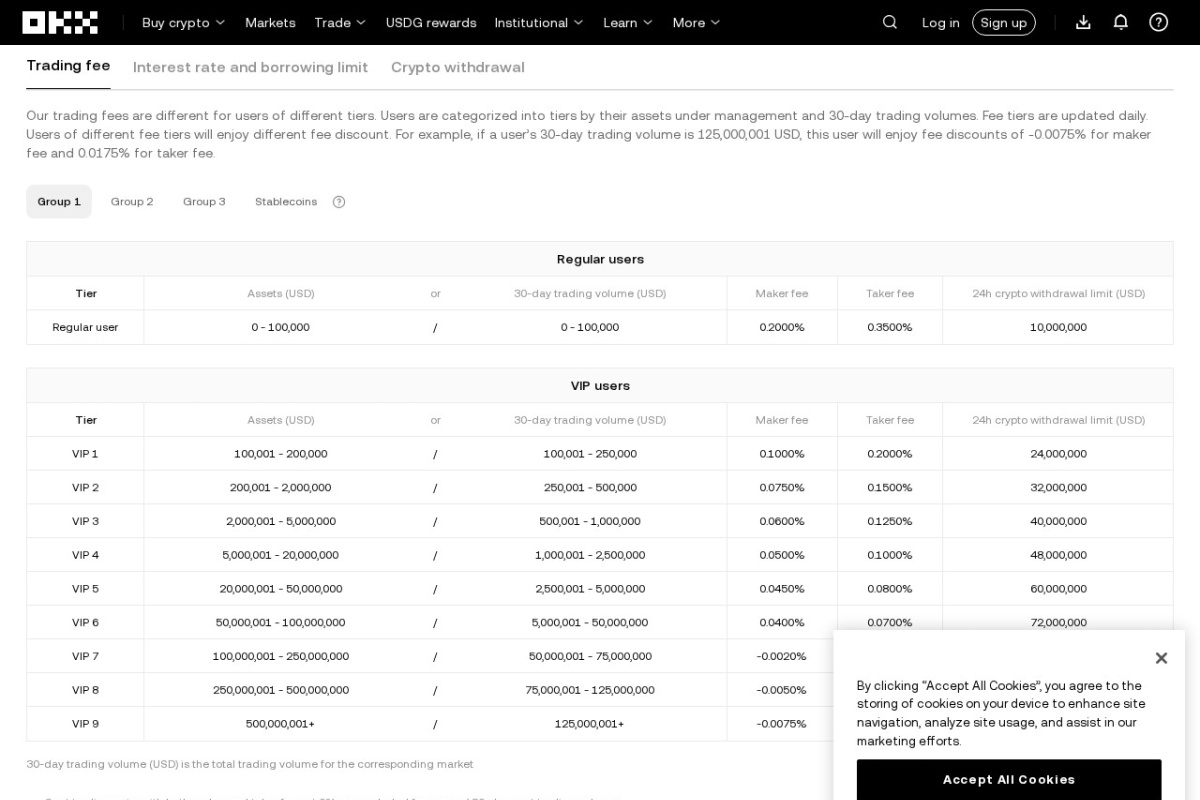
- Check your tier: open the official fee page and confirm your maker/taker rates - if most of your fills are taker, your habits are paying a premium. Reading the tier table is covered in how OKX fees work.
Three habits that lower the bill
- Rest limit orders instead of crossing the spread; maker rates usually beat taker - see limit vs market orders;
- Compare network fees before withdrawing - the network fee guide;
- Broader tactics in the fee saving guide.
FAQ
Q: Why are fees shown in coins rather than fiat? Spot fees are charged in-kind. To convert, multiply by the fill price - the CSV carries the price column you need.
Q: How far back can I export? Lookback windows and per-export ranges are limited; the report center page states the current limits. For long-term records, export monthly.
Q: Can I export from the app? Bulk export is most complete on the web; the app is best for checking individual orders.
This article is for educational purposes only and is not investment advice. Crypto assets are volatile; assess the risks yourself before acting. All rules and fees are subject to what OKX officially displays in your account. This site is not affiliated with OKX.
Last updated Aug 8, 2026. OKX may change its app and rules, so always check the official OKX pages before you act. Chinese readers can also see our Binance & OKX beginner guides in Simplified Chinese.