
Account & Troubleshooting
OKX Verification Unsuccessful? Fix KYC Rejection Step by Step
If OKX identity verification is unsuccessful, use the exact rejection message to fix the document, selfie, app-permission, duplicate-ID, or regional issue before submitting again.
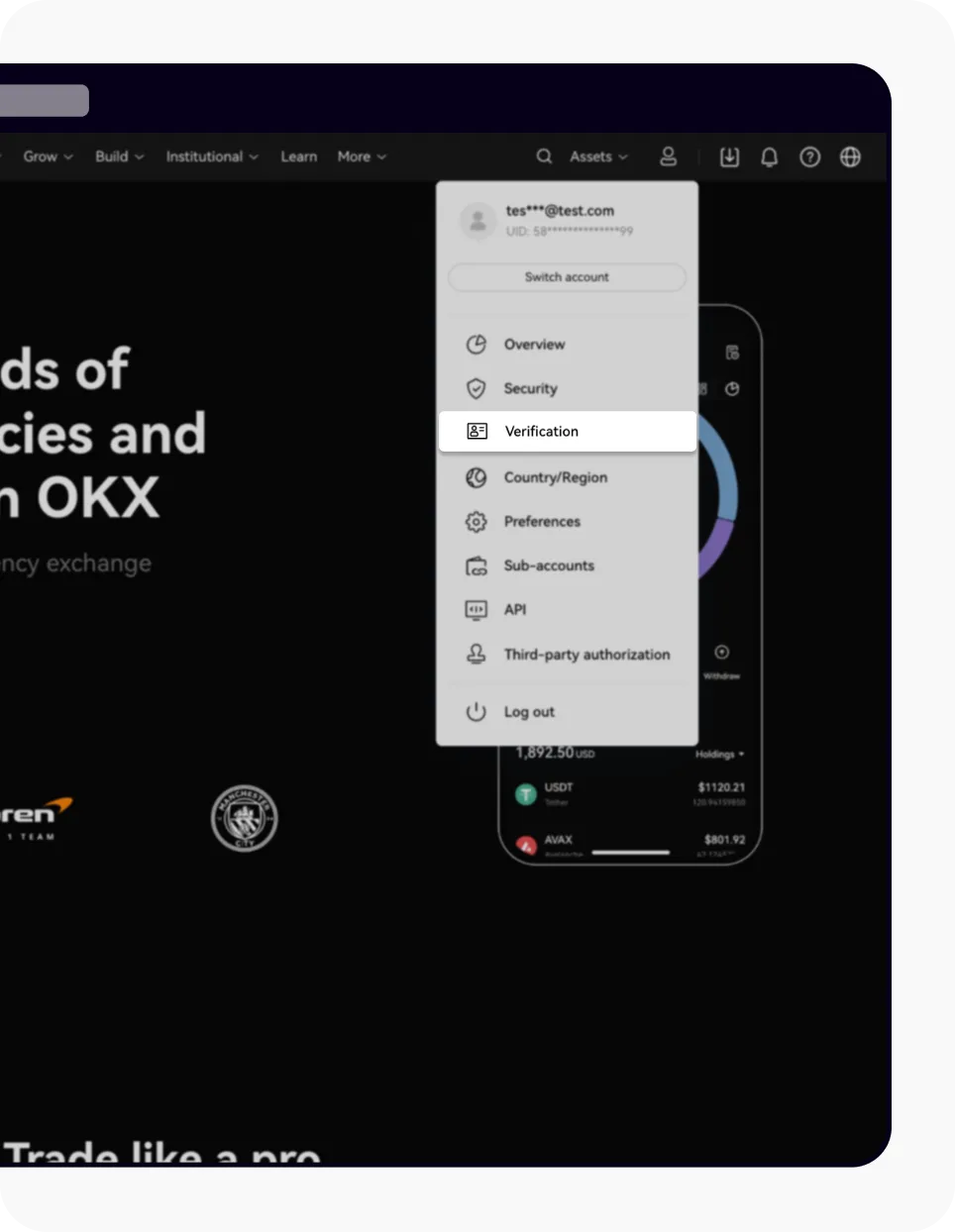
If OKX shows verification unsuccessful, do not immediately upload the same files again. First identify whether the failure happened while entering personal details, scanning an ID, taking a selfie, opening the camera, or checking an identity that may already be tied to another account. Each failure needs a different fix.
OKX requirements vary by country, account entity, and document type. Follow the choices shown in your signed-in account. This guide was checked on August 25, 2026 against current OKX Help Center material.
Official OKX Help Center screenshot showing the web path to Verification. The account details in the source image are masked examples. Source: How do I verify an individual account?
Start with the exact failed step
Check the on-screen message and the email sent for the failed attempt. Record the wording without sharing your document number or selfie publicly. Then match it to the closest case below.
| What you see | Likely area to fix | First action |
|---|---|---|
| Invalid or unsupported ID | Document type, expiry, or region | Choose an accepted, unexpired government ID shown in the form |
| ID detection failed | Blur, glare, crop, obstruction, or screenshot | Retake the original document in even light with every corner visible |
| Information mismatch | Name, date of birth, or other profile data | Compare every field with the document before resubmitting |
| Selfie or face recognition failed | Lighting, framing, obstruction, or wrong person | Use the account owner, uncover the face, and follow the movement prompts slowly |
| Camera or upload does not work | App version, permission, network, or device | Update the app, enable camera access, and retry on a stable connection |
| Identity already verified | The ID may be linked to another account | Stop creating attempts and contact official support for account-specific review |
OKX's current identity-verification failure guide lists these as separate causes. Treat the rejection message as a diagnosis, not as a generic invitation to try repeatedly.
Fix an ID document rejection
Prepare the physical original of a document that appears in the accepted-document list for your country. OKX's current individual-verification guide says the document should show the required identity details, be legible, display a clear face photo, have all corners visible, and remain unexpired. It also says screenshots are not accepted.
Use this checklist before taking a new photo:
- Clean the camera lens and place the document on a plain, contrasting surface.
- Use soft, even light. Move lamps or the phone until security features are visible without flash glare.
- Keep fingers, sleeves, and shadows away from the text and portrait.
- Include the complete document. Do not crop an edge to make the text look larger.
- Check that the name, date of birth, document number, issue date, and expiry date are readable where the form requires them.
- Upload the requested side of the requested document; a proof-of-address file cannot replace an identity document.
If the form does not offer your document type, do not label it as something else. Choose another valid option displayed by OKX or ask support which document is accepted for your account region.
Fix a personal-information mismatch
Enter details as they appear on the document rather than using a nickname or an English spelling you normally use elsewhere. Pay attention to name order, middle names, punctuation, date format, and local-language fields. If the information shown in your account is already wrong and the form does not let you edit it, use OKX Assistant or the Support Center instead of submitting altered images.
Never use another person's ID, edit a document image, or pay a third party to “pass KYC.” The official guidance says the account owner must complete face recognition and that one set of identity information cannot be reused across accounts. Those workarounds create an ownership problem and can trigger restrictions.
Fix selfie or face-recognition failure
Use the account owner's face and follow the live prompts. A practical retry setup is:
- face a window or diffuse lamp instead of standing with bright light behind you;
- remove a hat, mask, and glasses if they obscure the face or reflect light;
- keep only one person in frame;
- hold the phone at eye level and keep the full face inside the guide;
- move slowly when the screen asks you to turn or nod.
A very old document photo can make automated matching harder, but do not manipulate the selfie or document. If a clear, compliant attempt still produces a mismatch, contact support for account-specific review.
Fix camera, upload, or frozen-screen problems
For an app that cannot open the camera or upload a photo, check in this order:
- Confirm camera and photo permissions for the OKX app in the phone's settings.
- Update the official app to the latest version available for your device.
- Restart the app and phone, then use a stable network.
- If you use OKX Wallet, back up the wallet's recovery material securely before reinstalling anything.
- Retry from the verification path inside the app or from
okx.com, not from a link in an unsolicited message.
If you are unsure whether a page, email, or contact is genuine, use our guide to verify an OKX website or communication channel before submitting identity data.
If OKX says the identity is already verified
Do not open more accounts or keep resubmitting the same ID. The message can mean the document is associated with another account. Use the official Support Center and provide only the materials requested inside that channel. If you recognize an older account, recover that account rather than trying to attach the same identity to a new one.
A duplicate-identity message is different from an account being frozen after verification. If trading, login, or withdrawal access is restricted, follow the separate account restriction and appeal checklist so you preserve the right evidence and do not confuse the two issues.
When to resubmit and when to contact support
Resubmit after you have corrected the specific issue. A new photo with the same glare, an unchanged typo, or another unsupported document is unlikely to change the result. Keep a private note of the time, failure message, document type, device, and actions already tried; do not include a full ID number in an ordinary chat message.
OKX's current timing page says document processing can take about 30 seconds, while a case needing further review can take up to 24 hours; demand can extend that estimate. If the status is still unresolved after the period shown in your account, or the same specific error remains after one corrected attempt, use OKX Assistant or the official Support Center. See the current OKX verification timing guidance for the latest regional wording.
Contact support without another attempt when:
- the system says your ID is already linked but you do not recognize the account;
- correct account details are locked and cannot be edited;
- face matching repeatedly fails for the account owner despite a clear setup;
- the required document or country option is unavailable;
- a disability or accessibility need requires an alternative verification process.
After verification succeeds
Return to the Verification page and confirm the completed status in the account. Then finish the rest of the exchange setup and security checklist: add strong authentication, review withdrawal safeguards, and perform a small end-to-end test before moving a larger amount. Identity verification confirms account ownership; it does not replace login and withdrawal security.
This independent guide is educational and is not affiliated with OKX. Product availability and verification rules differ by jurisdiction; the signed-in OKX screen and official support response are authoritative for your account.