
Account & Troubleshooting
How to Enable or Disable SMS Verification on OKX: What You Can Change
Trying to enable SMS, stop prompts, or recover an old number on OKX? Check which action your account supports, when to troubleshoot a missing code, and what changing the linked number involves.
If you want to enable or disable SMS verification on OKX, first check what your account is asking you to do. A masked phone number in Security means a number is already linked. If no number is linked, follow the setup controls offered in your account. If the number is old, change or reset it; if a code is missing, troubleshoot delivery before starting recovery. OKX’s international phone-number guide says a linked number can be changed or reset, but cannot be removed. Choosing another method for one verification step does not unlink it.
This guide was checked on September 30, 2026. Menu labels, available methods, and restrictions can vary by country, account type, and app version. The signed-in notice in your own account is authoritative.
Official OKX phone-number help page captured September 28, 2026. The public page shows the change-number route; no signed-in account or verification code is visible.
Quick answer: choose the route that matches your problem
| What you want to do | Correct route | Do not assume |
|---|---|---|
| Link a number when none is shown | Open Security, look for Phone or Mobile verification, and follow the setup offered to your account | Every account has a separate “Enable SMS” switch |
| Stop using an old number | Change the linked number while you still control it | Adding a passkey automatically removes the phone |
| Recover after losing the old number | Use Unable to verify or the authentication-reset flow shown by OKX | A third party can safely bypass verification |
| Fix a code that never arrives | Troubleshoot delivery before resetting the number | More code requests will make delivery faster |
| Stop SMS prompts altogether | Check which other methods your own verification screen offers | Adding another method removes the linked number or ends every SMS prompt |
If you see Unable to verify, that is a recovery choice for a check you cannot complete; it is not an “enable SMS” setting. A delivery failure may be temporary, while a lost number needs a controlled recovery process. Identify the problem before changing security settings, which can trigger extra checks or a hold.
How to enable SMS verification on OKX
The exact first-time setup screen differs by region. Use the official OKX app or type okx.com directly into your browser; do not begin from a link in an unexpected message.
In the app
- Open the official OKX app and select Menu.
- Go to Account settings > Security.
- Under Authentication methods, look for Phone, Phone number, or Mobile verification.
- If no number is linked and the option is available, select the setup or enable control.
- Enter a phone number you expect to control long term, then complete the verification steps shown on screen.
- Return to Security and confirm that the masked number appears correctly.
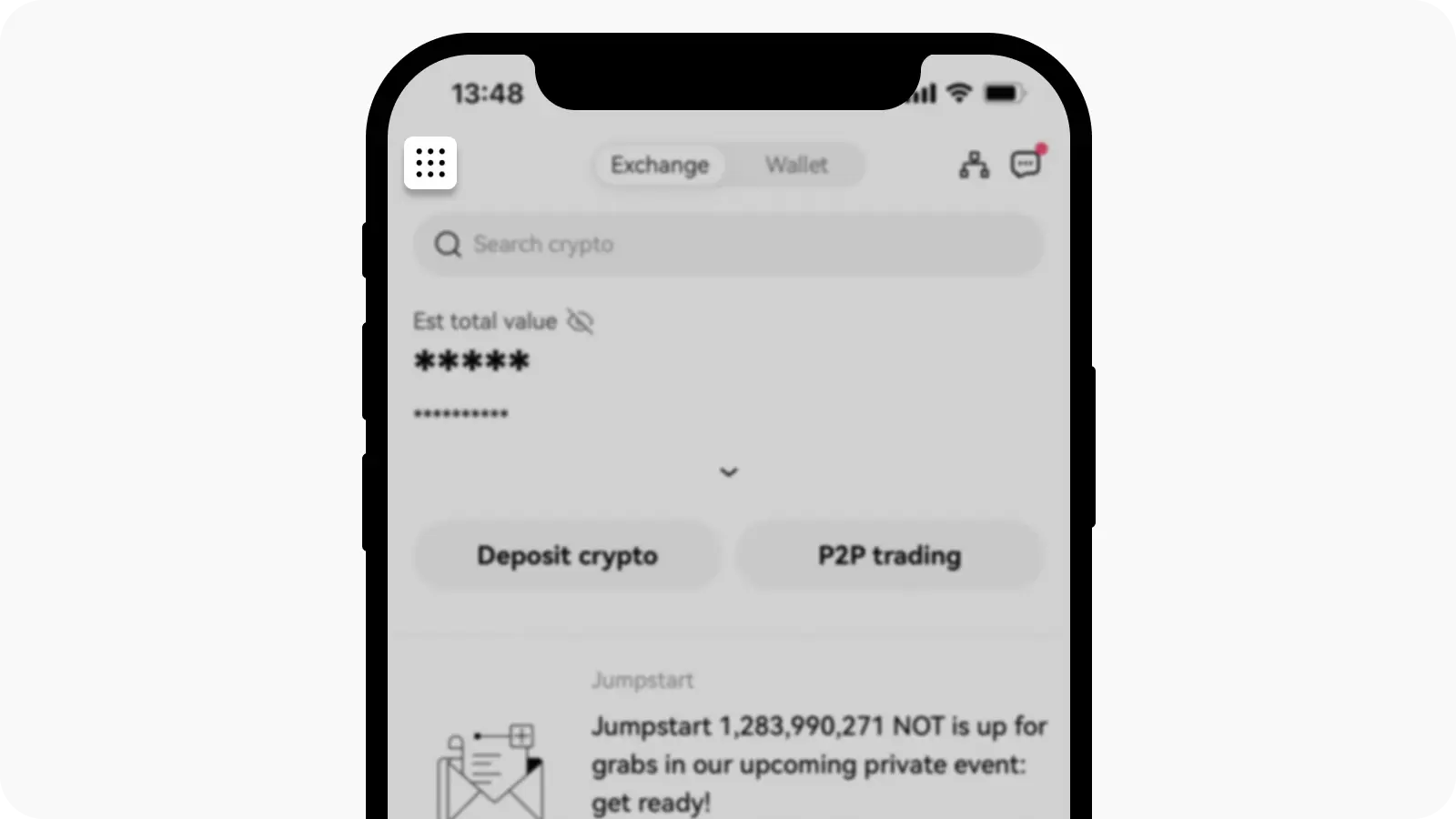
Official OKX interface screenshot from its phone-number help article. The example account values are obscured and no real user data is visible.
On the web
- Type
okx.cominto the address bar and sign in. - Open Profile > Security.
- Find the phone or mobile-verification entry under the available authentication methods.
- If your account provides a setup option, follow the on-screen checks and confirm the masked destination afterward.
If the entry is missing, do not use a VPN or another person’s number to force the option. Product availability differs by region, and the safest next step is the Support Center reached from the official site.
Can you disable SMS verification completely?
When “disable” means removing the linked phone number, OKX’s international guide updated August 25, 2026 gives a direct answer: the number can be changed or reset, but not removed. Other regional pages may present different wording or recovery controls, which is why the settings visible in your own account take priority.
When “disable” means avoiding SMS for one login, your screen may offer another method such as an authenticator app, a voice call, or a passkey. Availability varies. Set up and test the alternative before changing a working phone number. Deleting the OKX app, removing the SIM card, or creating a passkey does not by itself prove that the phone has been unlinked.
If you want codes that do not depend on text-message delivery, read how to set up an authenticator app on OKX and test it before changing a working phone number. Adding it does not guarantee that every action will stop requesting SMS.
Change the number while you still have access
OKX’s current international instructions use this app route:
- Open Menu > Account settings > Security.
- Under Authentication methods, select Phone.
- Select Change phone number, confirm that the current number is accessible, and review the security notice.
- Enter the SMS code sent to the current number.
- Complete any additional verification requested.
- Enter the new number and the code sent to it.
- Reopen Security and verify the new masked number.
On the web, the official route is Profile > Security > Phone number > Manage > Change phone number. Follow the current-number and new-number checks shown there. Never share either code with a caller, chat agent, or social-media account.
For a fuller decision tree covering lost access to either contact method, see how to change your OKX phone number or email safely.
Reset the number when the old phone is unavailable
If you can still sign in, open the app’s Security section, select the phone entry, and choose the option indicating that the current number is inaccessible. Complete only the identity and alternative-method checks requested inside the official app.
If you cannot sign in, OKX’s current international guide directs users through the login recovery flow: enter the linked phone or email, select Forgot your password, review the security notice, then choose Unable to verify > Reset authentication method. The exact sequence can differ by regional product.
If you also use an OKX Web3 wallet, confirm that its seed phrase or private key is backed up offline before changing devices. Exchange-account recovery does not replace a missing self-custody wallet secret. Never paste a seed phrase or private key into support chat.
Understand the 24-hour security restriction
The international phone-number guide says that after changing the number, withdrawals, P2P crypto selling, and DEX trading are unavailable for 24 hours. A regional product may show a narrower or different restriction, so read the notice displayed before you confirm.
Before making the change:
- avoid starting a time-sensitive P2P sale that you may be unable to complete;
- review any urgent withdrawal only if it is safe and genuinely necessary;
- keep non-sensitive confirmation records;
- treat an unexpected phone-change notification as a possible account-compromise warning.
Do not try to evade a security hold by opening another account or paying an unofficial recovery service.
If the SMS code does not arrive
A missing code does not automatically mean the phone number must be reset. Work through these checks in order:
- Confirm the masked destination and country code.
- Keep the current verification screen open and wait for the newest request.
- Enter only the newest code; an older code may no longer match the active request.
- Restart the phone, check signal and message storage, and review blocked-message or dual-SIM settings.
- Check whether your carrier or a filtering app blocks automated messages.
- Clear the OKX app or browser cache, then request a fresh code once.
- If OKX shows SMS sending failed, its current help page recommends waiting about two hours before trying again.
- Use another official OKX surface or an alternative method only when the verification screen offers it.
- If delivery still fails, open the official Support Center directly rather than following a search ad or private message.
Our OKX verification-code troubleshooting checklist covers SMS, email, carrier filtering, cooling periods, and alternative verification in more detail.
Security checks after a change or reset
- Review linked devices and remove sessions you do not recognize.
- Change your password if the phone change was not initiated by you.
- Add an authenticator app or passkey where available so recovery does not depend on one channel.
- Never disclose an SMS code, authenticator code, password, seed phrase, or private key.
- Open OKX directly instead of following a link in an unexpected text message.
FAQ
Why can’t I find an Enable SMS button?
The feature may be labelled Phone, Phone number, or Mobile verification. If a masked number already appears, SMS verification is already linked and you should use its management controls instead of repeating setup. If no phone option appears, availability may differ in your region.
Why can’t I find a Disable SMS button?
A linked phone may offer only change or reset controls. OKX’s current international guide says the linked number itself cannot be removed. Another authentication method may be available for a specific action, but that does not necessarily unlink the number.
What if I meant “unable to receive SMS”?
Start with the delivery checklist above. Resetting the number should come after you rule out delay, filtering, dual-SIM settings, carrier problems, and the cooling period shown by OKX.
Is SMS verification enough?
It is one security layer, but it depends on a phone number and carrier. Use a strong unique password and add an authenticator app or passkey where available.
Official sources checked September 30, 2026: OKX Help Center pages for changing a phone number, missing SMS codes, account security features, and creating a passkey in the app. Product availability and recovery controls vary by region; the signed-in notice for your account remains authoritative.