Account & Troubleshooting
OKX Passkey Not Working? Fix No Passkey Found and Set Up a New Phone
OKX passkey not working or showing No passkey found? Find where the credential is stored, use another device, fix new-iPhone and browser PIN prompts, and set up a replacement before removing the old one.
If your OKX passkey is not working, start with the exact message on screen. No passkey found usually means the phone, computer, browser, or password manager you are using cannot see the credential that was created earlier. It does not normally mean the OKX account or its assets have disappeared.
Source check: Reviewed August 27, 2026 against OKX's current app passkey guide, web passkey guide, and Passkey FAQ. Availability, device requirements, menu labels, and reset rules can differ by jurisdiction and account. Follow the notices displayed in your signed-in OKX account.
Match the message to the likely cause
| What you see | Likely cause | Safest next step |
|---|---|---|
| No passkey found | The credential is stored on another device, platform, Apple ID, Google account, browser profile, or security key | Choose Use another device and verify with the device that holds the passkey |
| A QR code appears on the original iPhone | iOS or the Passwords app may be outdated or unavailable | Update iOS and confirm the Passwords app is installed and working |
| A browser asks for a PIN or password | Chrome, the operating system, or a password-manager extension is unlocking its local passkey vault | Check the prompt's owner before entering the device or vault credential |
| The feature is unavailable in your region | The app may be outdated, or the feature may not be offered for that regional product | Update through the official app store, then follow the availability notice |
| The old passkey works but the new phone does not | The credential did not sync, or the new device uses a different cloud account or platform | Keep the old phone nearby, enable Bluetooth, and add or authorize a passkey on the new device |
| Reset or removal is the only option | The original credential cannot be recovered or used | Read the security restriction notice before confirming; do not repeatedly reset credentials |
Find Passkeys in the OKX app
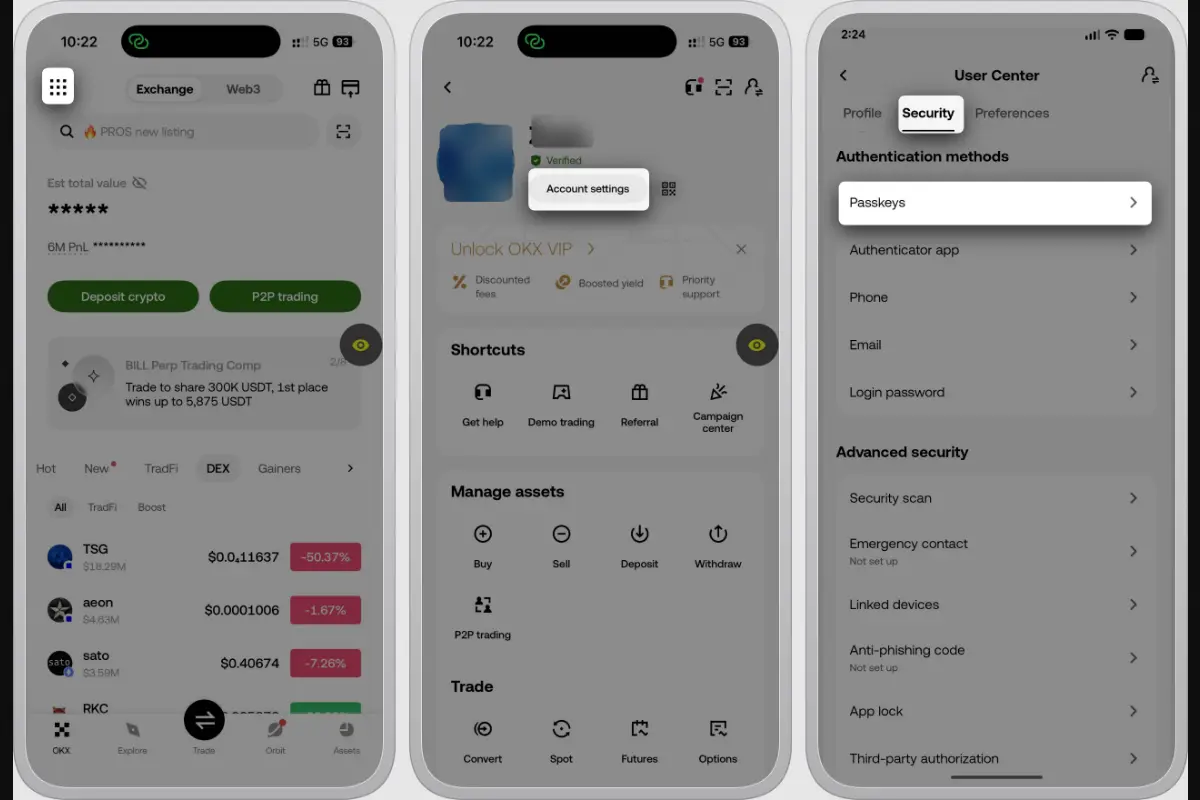
In the current OKX app guide, the route is Menu → Account settings → Security → Passkeys. Depending on your regional app, the middle screen may be labelled User Center, and Passkeys may appear under Authentication methods.
Real OKX Help Center screenshots captured on August 27, 2026. The official source has already obscured the example profile and balances; no personal account or verification data is shown.
The official US app guide says first-time binding requires identity, email, and SMS verification. If SMS is not linked yet, complete the separate steps to enable SMS verification on OKX before treating the missing setup option as a passkey fault. Regional requirements can differ, so the verification checklist on your own screen is authoritative.
Set up or confirm a passkey before troubleshooting
A passkey can be created with the current phone's biometric or screen lock, another compatible device, or a FIDO2 security key when the option is supported. For the OKX app, the current US guide lists iOS 16 or later, Android 14 or later, or a FIDO2 USB security key as baseline options. Android passkeys depend on access to Google services. On Apple devices, passkey syncing depends on the Apple account and system password manager.
To create one in the app:
- Open the official OKX app directly and sign in.
- Go to Menu → Account settings → Security → Passkeys.
- Select Enable and finish the security checks shown by OKX.
- To save the passkey on the current device, select Continue and approve the operating system's biometric or PIN prompt.
- To use a different phone, tablet, or physical key, select Other options and follow the device-specific prompt.
- Return to the Passkeys screen and confirm the new entry appears. Rename it with a clear device label if the option is available.
- Test it while you still have the current session and another authentication method available. Do not remove the old credential before the new one completes a real verification prompt.
On the web, OKX's current US guide uses Profile → Security → Passkeys → Set up. It lists Windows 10 or macOS Ventura and FIDO-capable browsers such as Chrome 109+, Safari 16+, or Edge 109+ for the web flow. These are documented minimums, not a reason to keep an old browser; use a currently supported browser version.
Fix No passkey found
This message is primarily a credential-location problem. Work through the following checks in order:
- Identify where the passkey was created. Was it saved to an iPhone, an Android device, Chrome Password Manager, the operating system's password manager, or a physical security key?
- Check the cloud or browser account. A new phone signed into a different Apple ID or Google account will not necessarily see the old passkey. The same applies to a different Chrome profile.
- Select Use another device. OKX's FAQ recommends scanning the QR code with the device where the passkey was originally set up. Keep Bluetooth enabled on both nearby devices when the cross-device flow requests it.
- Use the native camera or system passkey prompt. Do not photograph or send the QR code to another person. The QR flow is meant to connect devices you control.
- Return to the OKX Passkeys page after access is restored. Add and test a credential for the new device before deciding whether the old entry should be reset or removed.
Do not confuse this with a lost authenticator app. A passkey, a time-based authenticator code, and an SMS code are separate methods. If the real problem is an unavailable authenticator after a phone change, use the OKX lost-2FA recovery guide instead of deleting a working passkey.
Fix new-iPhone and Apple ID problems
If the original iPhone unexpectedly shows a QR code, OKX's current FAQ says an outdated iOS version can be the cause. Update iOS before changing the OKX security configuration.
For iOS 18, the same FAQ says passkey creation can fail when Apple's Passwords app was deleted or is not functioning correctly. Check that the Passwords app is present and usable, reinstall it from the App Store if needed, then try the official flow again.
When moving to a new iPhone:
- keep the old device until the new passkey has been tested;
- sign in to the intended Apple account and allow the system password manager to finish syncing;
- enable Bluetooth on both devices if OKX presents a cross-device QR flow; and
- add the new credential before removing or resetting the old one.
Switching Apple IDs can make the original passkey unavailable. Treat that as a migration issue, not as proof that the OKX account has been compromised. If the change was not yours, however, secure the Apple account and review OKX sessions from a trusted device.
Understand browser PIN and password prompts
A passkey flow can legitimately ask for a device PIN, fingerprint, Face ID, Touch ID, security-key touch, or password-manager unlock. OKX's FAQ specifically notes that when Chrome Password Manager asks for a password or PIN, the request comes from Chrome or a browser extension unlocking its passkey vault, not from OKX.
Before entering anything, check that:
- you reached OKX by typing
okx.comor using the official app; - the prompt belongs to the operating system, browser, or password manager you intentionally use;
- no remote-support caller or chat contact is asking you to share the prompt, code, or QR image; and
- you are not being asked for a seed phrase or private key, which is unrelated to an exchange-account passkey.
If the page or message itself led you to a suspicious login flow, stop and verify the website, email, or support channel through OKX's official tools before continuing.
Reset or remove a passkey only after reading the restriction
Resetting is not the first troubleshooting step. OKX's current app and web guides warn that a reset, or removing a passkey without verifying with another passkey, may trigger a 24-hour restriction on withdrawals and P2P trading. The exact notice shown to your account controls.
Use this order:
- Recover access with the original device or another available authentication method.
- Add and test a replacement passkey where possible.
- Rename entries so you can identify which device or key each one represents.
- Read the on-screen security and review notice in full.
- Reset or remove only the credential that is genuinely unavailable.
Do not promise anyone a withdrawal immediately after a security change. A forced deadline is a common reason people ignore a legitimate restriction or accept unsafe help.
A safe stopping point
Stop self-troubleshooting and use the Support Center inside the official OKX site or app when the original device is gone, every supported method is unavailable, a review is pending, the same error returns after updates, or the account shows activity you did not authorize. Record the exact error text, device and OS version, app or browser version, and the time of the attempt. Any screenshot sent to support should hide email addresses, phone numbers, balances, QR codes, and verification details.
Quick answers
Does No passkey found mean my account is gone?
Usually no. It means the current device or password manager cannot locate a matching credential. Use another device or the official recovery options shown by OKX.
Can I create a passkey on a new phone without the old phone?
Possibly, if another supported authentication or reset path is available. The exact verification and review process is account- and region-specific, and a security restriction may follow.
Should I delete the old passkey first?
No. Add and test the replacement first whenever possible. Removing the old credential too early can turn a manageable migration into an account-access problem.
Is the OKX exchange passkey the same as an OKX Pay or wallet passkey?
No. OKX's help documentation treats exchange, Pay, and some wallet passkeys as separate systems. Check the label and product context before changing anything.
This article is educational and is not affiliated with OKX. Security menus and requirements can change; the current notice in your signed-in account and the applicable OKX Help Center page take precedence.
Last updated Oct 22, 2026. OKX may change its app and rules, so always check the official OKX pages before you act. Chinese readers can also see our Binance & OKX beginner guides in Simplified Chinese.